

Typically, the Segment Rules defined on the Rules tab determine whether a Member is included in a Segment. Optionally, you can manually override the Rules and explicitly include a Member in a Segment (or conversely, exclude a Member from a Segment).
This article explain how to define Member overrides through the platform interface. In addition, you can import a list of Members that you want to include or exclude. See
Include a Member in a Segment
To explicitly include a Member in a Segment:
-
Select Members from the top navigation bar, then select Segments from the side navigation menu. The Segments screen is displayed.
-
Search for and select the desired Segment (see
-
Select the Member Overrides tab.
-
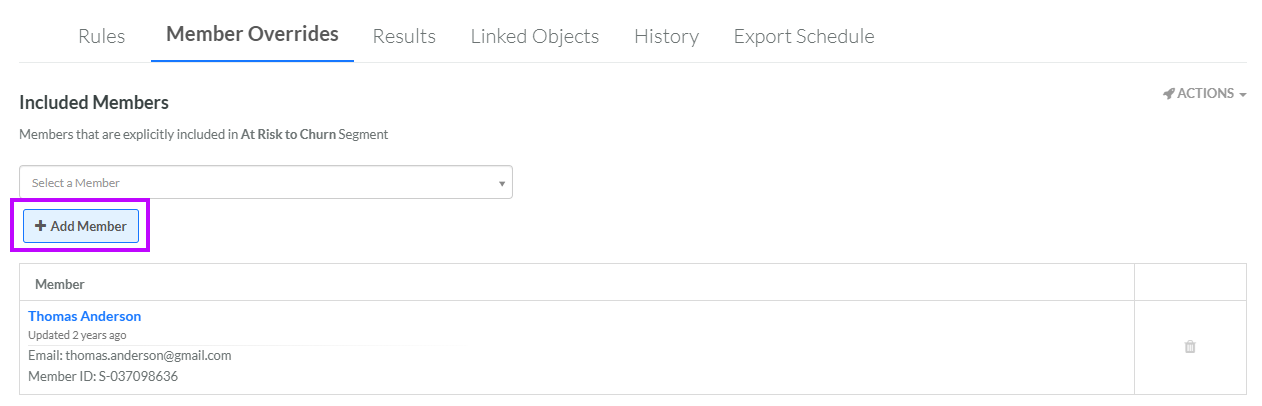
Within the Included Members section, in the Select Member drop-down menu, begin typing the Member's name (you must type at least three characters). From the drop-down menu of search results, select the desired Member.
-
Click Add Member. The Member is added to the list within the Included Members section. The platform displays the Member's name, email address, and Member ID. For additional details, click the Member's name to navigate to the Member Details screen.
-
Repeat the above steps as needed to include additional Members. Optionally, to remove a Member from the Included Members list, click the Delete icon next to their name.
Exclude a Member from a Segment
To explicitly exclude a Member from a Segment:
-
Select Members from the top navigation bar, then select Segments from the side navigation menu. The Segments screen is displayed.
-
Search for and select the desired Segment (see
-
Select the Member Overrides tab.
-
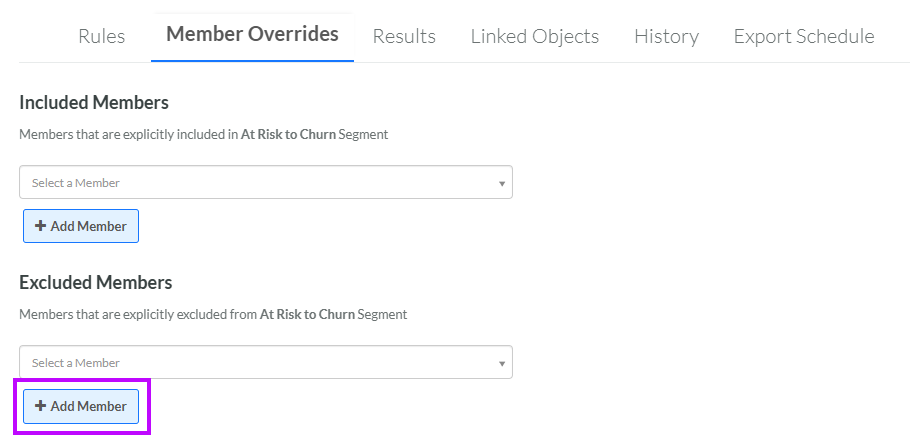
Within the Excluded Members section, in the Select Member drop-down menu, begin typing the Member's name (you must type at least three characters). From the drop-down menu of search results, select the desired Member.
-
Click Add Member. The Member is added to the list within the Excluded Members section. The platform displays the Member's name, email address, and Member ID. For additional details, click the Member's name to navigate to the Member Details screen.
-
Repeat the above steps as needed to exclude additional Members. Optionally, to remove a Member from the Excluded Members list, click the Delete icon next to their name.
